What the Installed Website Does
Open the same Boudreaux’s website from your home screen or desktop. You can find the two shops, read repair guidance and start an estimate request. An internet connection is required for current pages and forms. Installation does not create an account, book a visit, confirm a repair authorization or sign you up for notifications.
The app does not save photos or form entries offline. If your connection drops, reconnect before submitting and check the confirmation screen. Call the selected shop for urgent follow-up.
iPhone and iPad: Add to Home Screen
- Open this website in Safari.
- Open the Share menu and choose Add to Home Screen. Menu locations can vary with your device version.
- Confirm the name and tap Add. Use the new icon to reopen the website.
If the option is absent, open the page directly in Safari rather than inside another app’s browser. The shortcut opens the website address used when you added it.
Android: Install from Your Browser
- Open this website in Chrome or another browser that supports website installation.
- Open the browser menu and look for Install app or Add to Home screen.
- Confirm the installation, then open the new icon.
Browser wording and eligibility vary. A missing install prompt does not stop you using the website normally; bookmark it instead. The website does not require an app-store download or payment.
Desktop: Install or Bookmark
In a supported Chrome or Edge desktop browser, look for the install icon near the address bar or an install option in the browser menu. Confirm the dialog to open the website in its own window. If your browser does not offer installation, save a bookmark.
Remove the shortcut through your device’s app or home-screen controls when it is no longer needed. Removing it does not cancel a request already sent to the shop.
Contact the Shop or Start a Request
New Orleans: 2150 Earhart Boulevard, New Orleans, LA 70113 — 504-309-3092.
Luling: 101 4th Street, Luling, LA 70070 — 985-331-0707.
Request an estimate · Choose a shop · Explore repair education · Privacy information.
If the shortcut opens but the page will not load
Check your connection and try opening the website in your browser. An installed icon provides convenient access; it does not give forms or current pages an independent offline connection. If you were completing a request when the connection failed, reconnect and check for a confirmation before assuming the request was received.
Use the shop contacts for urgent follow-up. Keep the vehicle and request details available when calling, and explain whether you saw a confirmation. Installation does not create a repair-status account or a separate message channel.
You can also save a normal browser bookmark if installation is unavailable or you prefer that approach. The website’s shop information, education and request pages are available through the browser without installing anything.
Keep your shortcut pointed at the website you intend to use
A home-screen icon stays associated with the website address used when it was added. If you want to use a different website address, add a shortcut from that address. A new icon is a convenience for navigation; it does not transfer or cancel requests already submitted.
Remove an unwanted shortcut through your device’s normal app or home-screen controls. The exact wording varies by browser and operating system. For current browser instructions, see Google’s web-app help or Apple’s iPhone website-app guide.
Website App Questions
Access the website from your phone
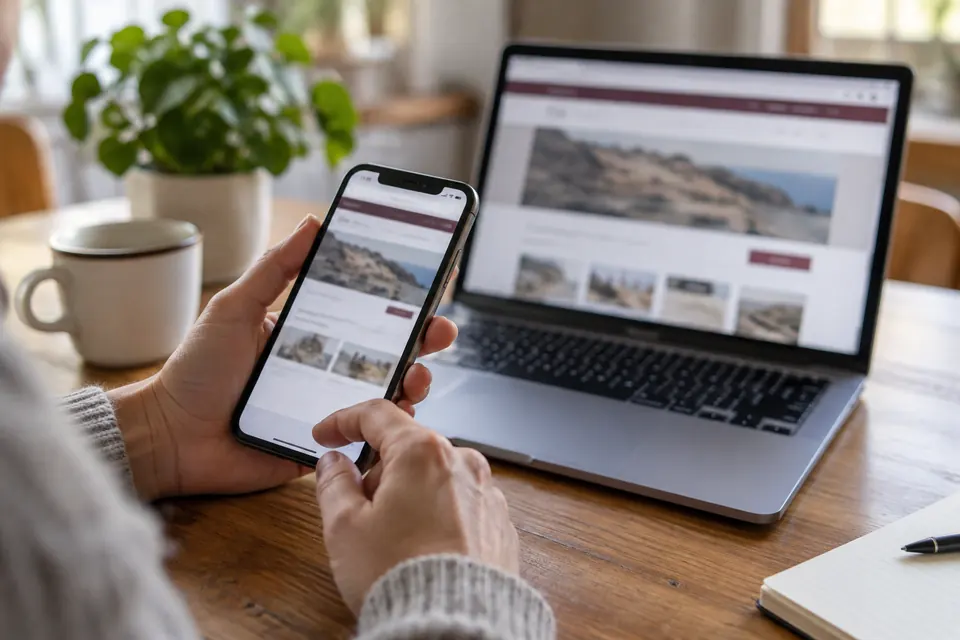
Generated illustration of opening a website in a phone browser. The installed shortcut opens Boudreaux’s Collision’s website.